Integrations
 Cursor IDE
Using Apertis Models
Setting Up API Key
You can integrate Apertis into Cursor to use its models.
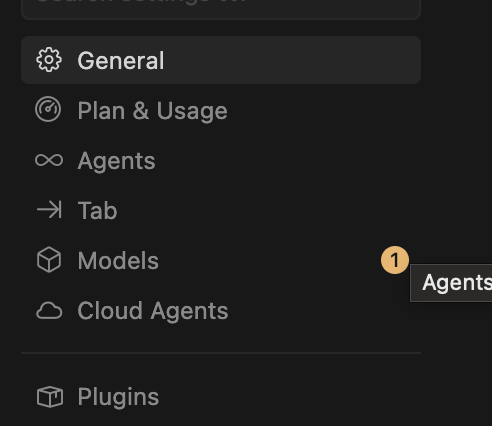
- Open Cursor Settings and navigate to the Models section from the sidebar.
- Scroll down to the API Keys section. In the OpenAI API Key field, enter your Apertis API Key. Enable the Override OpenAI Base URL toggle and enter the following URL:
https://api.apertis.ai/v1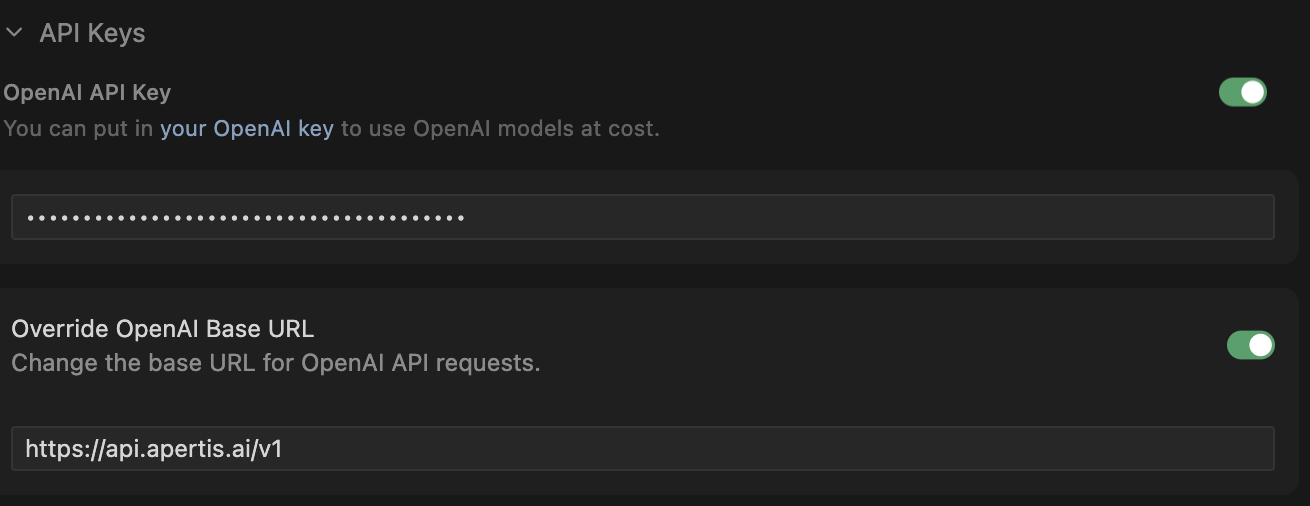
Enabling Models
After configuring the API Key, enable the models you want to use by toggling them on in the Models list. The available models through Apertis include:
- Sonnet 4.6 — Claude Sonnet 4.6
- Opus 4.8 — Claude Opus 4.8
- GPT-5.3 Codex — OpenAI GPT-5.3 Codex
- GPT-5.4 — OpenAI GPT-5.4
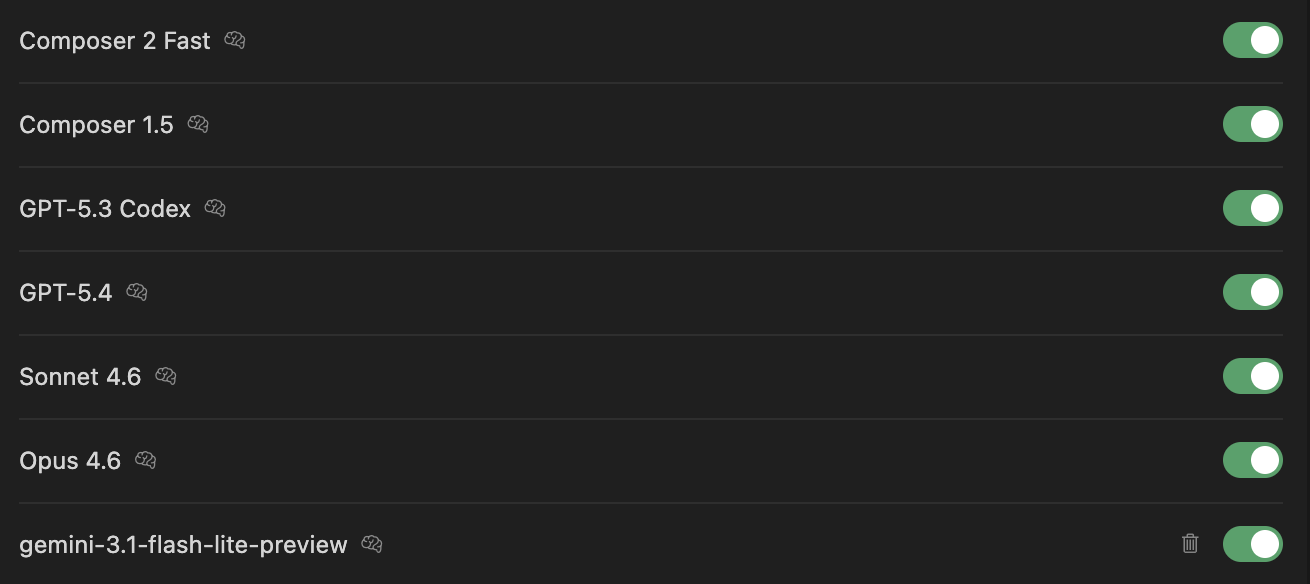
For the full list of supported models, refer to the Model Support List.
Once enabled, the models will be available in the chat and composer interfaces.
Model ID Conflicts
Some model IDs (e.g., gpt-5.4) may conflict with Cursor's built-in model routing, causing requests to bypass Apertis entirely.
Solution: Add the apertis/ prefix to the model ID.
| Original | Cursor IDE Version |
|---|---|
gpt-5.4 |
apertis/gpt-5.4 |
claude-sonnet-4-6 |
apertis/claude-sonnet-4-6 |
code:claude-sonnet-4-6 |
apertis/code:claude-sonnet-4-6 |
gpt-5.4:web |
apertis/gpt-5.4:web |
The apertis/ prefix is automatically stripped at the API layer — billing, logs, and quota are unaffected.
You can find the Cursor-compatible model ID for each model on its detail page at apertis.ai/models.